
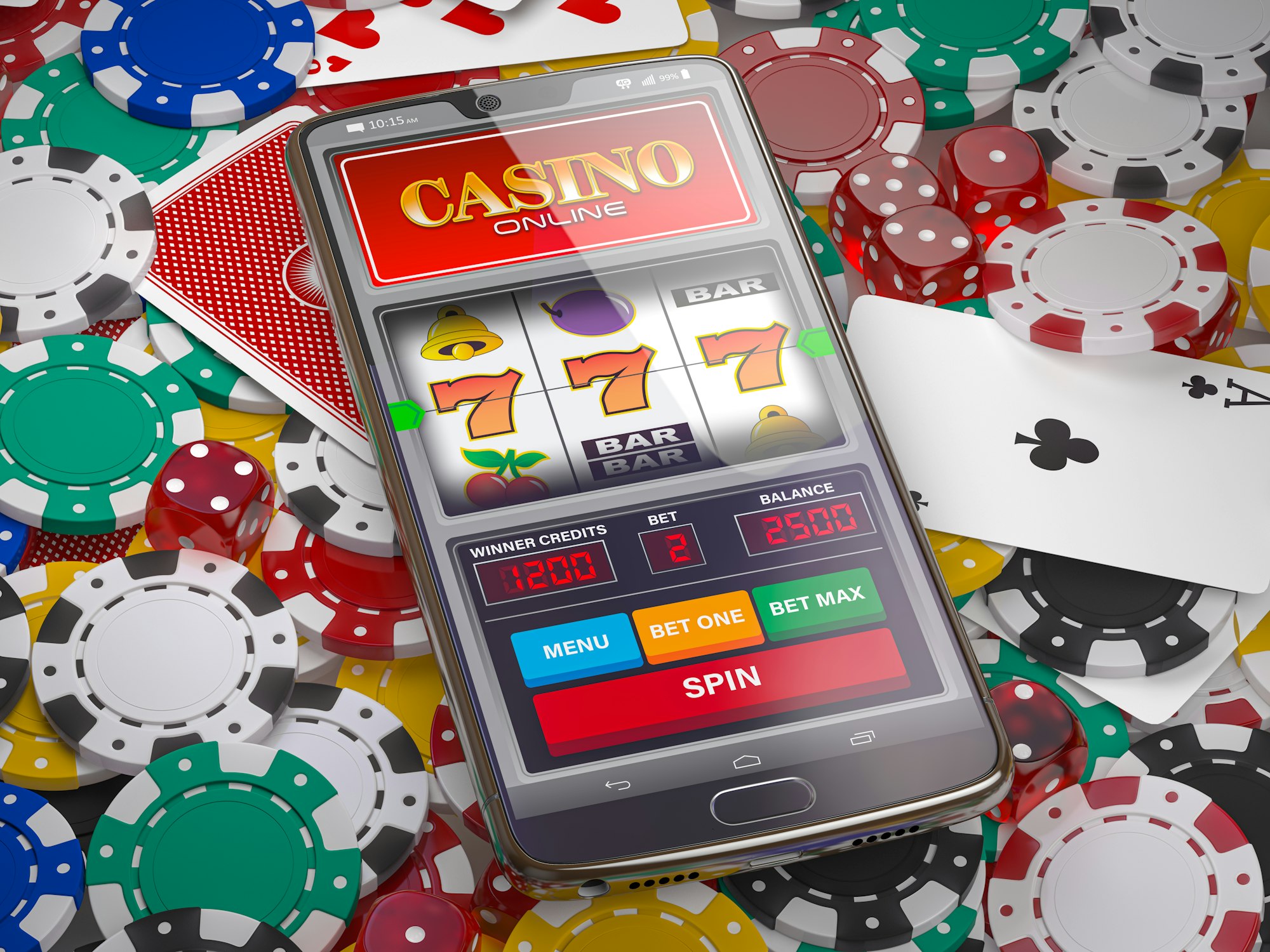
The rollingslotscasino mobile app delivers daily rewards to Canadian players through a systematic system that integrates login bonuses, time-based challenges, and in-app progress tracking. Players can access the full suite of casino games, handle deposits and withdrawals, and receive reward notifications directly on their devices without changing to a desktop browser. This article describes how the app works on supported devices, outlines the exact steps required to install it, and details the features that differentiate the mobile experience from the desktop site.
Compatible Devices and System Requirements
The Rolling Slots Casino mobile app works on iOS and Android devices that meet specific operating-system thresholds. iPhone and iPad users require iOS 13.0 or later, which covers devices released from 2017 onward such as the iPhone 8 series and newer models. Android users need version 7.0 (Nougat) or higher, spanning the majority of handsets manufactured after 2016. The app is tuned for screen sizes between 5.0 and 7.3 inches, guaranteeing that interface elements keep legible without excessive scrolling on both compact and large-format phones.
Tablet users may install the app on iPadOS 13.0 and Android tablets running 7.0 or later, but the interface remains portrait-oriented by default. Landscape mode is available only on select slot titles that support horizontal layouts. Players must confirm that their device fulfills these requirements before attempting installation to avoid compatibility errors during the download process.
Standard Payment Methods Available in the App
The mobile app supports a selection of deposit and withdrawal options catered to Canadian banking habits. Interac e-Transfer is the most popular method, delivering instant deposits and processing times of two to three business days for withdrawals. Credit and debit cards from Visa and Mastercard are also accepted, with deposits credited immediately and withdrawals typically completed within three to five business days.
Players looking for faster cashouts can use e-wallets such as MuchBetter and ecoPayz, which shorten withdrawal times to under twenty-four hours once verification is complete. Cryptocurrency deposits via Bitcoin and Ethereum are processed within ten minutes, although withdrawal processing still follows the standard two-to-five-day window. A quick-reference table of methods, fees, and processing times is shown below.
- Interac – 0 % fee, instant deposit, 2–3 days withdrawal
- Visa / Mastercard – 2.5 % fee, instant deposit, 3–5 days withdrawal
- MuchBetter – 1 % fee, instant deposit, under 24 hours withdrawal
- Bitcoin – network fee only, 10-minute deposit, 2–5 days withdrawal
Account Administration and Security on Smartphone
Users can activate two-factor authentication directly from the app’s security menu by attaching a mobile authenticator app. Once activated, every login attempt produces a six-digit code that must be entered within sixty seconds. The app also supports biometric login through Touch ID on iOS devices and fingerprint or face recognition on Android devices running 6.0 or later.
Deposit and withdrawal history is accessible from the account tab, with each transaction extendable to show method, amount, timestamp, and status. Pending withdrawals display an estimated processing window of two to five business days, aligned with the desktop site. Members can upload verification documents through the app’s camera interface, which effortlessly crops and compresses images to comply with file-size limits before submission.
Setup and Setup Steps for Android
Android users get the app directly from rollingslots.app/app/ by tapping the “Get Android App” button, which retrieves an .apk file. Before installation, the device must enable apps from unknown sources. On Android 8.0 and later, this setting shows up under Settings > Apps > Special app access > Install unknown apps. Earlier versions place the toggle under Security settings.
Once the .apk completes downloading, users launch their file manager, find the file in the Downloads folder, and select it. The system presents a permissions screen showing storage and network access. Accepting these permissions begins the installation, which usually finishes within thirty seconds. After the app icon shows up in the app drawer, players can open it and proceed to account login.
Security Checks on Android Devices
Android’s built-in Play Protect checks the .apk during installation. If a warning shows up, users can select “More details” to check the app’s package name and ensure it corresponds to “com.rollingslots.mobile.” Turning on Google Play Protect scanning before installation reduces the chance of facing false-positive blocks. Players should also ensure their device is on the latest security patch level to keep compatibility with the app’s encryption protocols.
Regular Reward Mechanics Inside the App
Daily rewards are granted automatically at 00:00 Eastern Time provided the player has launched the app at least once in the previous 24 hours. The base reward consists of free spins having a quantity grows with account level, varying from five spins at level one to twenty-five spins at level ten. Additional rewards show up when players finish time-limited challenges, such as staking a set amount on designated slot titles within a 24-hour window.
Progress toward each challenge is tracked in real time and shown as a percentage bar beneath the game thumbnail. Completing a challenge triggers an in-app notification and transfers the prize to the player’s bonus balance within five minutes. Rewards become void after seven days if unused, a limit clearly specified in the terms accessible from the rewards screen.
Redeeming and Converting Rewards
To turn free spins into cash, players must play through the resulting winnings thirty times before requesting a withdrawal. The app shows the remaining wagering requirement on the bonus balance screen, refreshing after each completed spin. If the requirement is not satisfied within thirty days, the bonus and any associated winnings are lost, a rule that reflects the desktop terms but is shown more prominently in the mobile interface.
Download and Setup Instructions for iOS
Canadian users with iOS devices acquire the Rolling Slots Casino app via the official website instead of the App Store, since gambling applications are prohibited by Apple’s distribution policies. The initial step is to start Safari and head to rollingslots.app/app/. Upon arrival, the site recognizes the operating system and shows a download button labeled “Get iOS App.” Tapping the button starts the download of an .ipa configuration profile.
After the profile downloads, users need to enter Settings, select General, then Profiles & Device Management. They press the Rolling Slots Casino profile and select Install, typing their device passcode when prompted. A second prompt warns that the developer is unverified; confirming the installation allows the app to show up on the home screen. The whole process normally completes in under three minutes on a stable Wi-Fi connection.
Checking the iOS App Post Installation
When the app icon appears, users ought to launch it and authenticate with current credentials or set up a new account. The initial launch triggers an automatic integrity check that matches the app’s digital signature to the server. Should the check passes, the home screen presents the daily reward counter and a roster of active challenges. Players who encounter a “developer not verified” message after installation should head back to Settings and clearly authorize the enterprise certificate listed under Profiles.
Mobile Features That Differ from the PC Site

The mobile app offers several UI elements not found on the desktop version. A continuous reward bar at the top of the screen shows the countdown to the next daily login bonus and the number of consecutive days logged. Flicking left on this bar opens a calendar view that marks completed days in green and missed days in gray, enabling players to track streaks without accessing a separate menu.
Another difference is the quick-deposit widget available from any game screen. Tapping the wallet icon brings up a panel containing saved payment methods, current balance, and a one-tap deposit button defaulting to the player’s most recent amount. This reduces the steps required to add funds during a gaming session compared with the desktop flow, which demands opening a separate banking page.
Alert Controls
Players can customize push notifications for daily rewards, tournament start times, and deposit confirmations. The settings menu offers toggles for each category bleacherreport.com and a “Quiet hours” scheduler that blocks alerts between user-defined times. Notifications come even when the app is closed, assuming the device has an internet connection and has granted notification permissions during installation.
Refreshing the App and Managing Storage
The Rolling Slots Casino app scans for updates each time it opens over a Wi-Fi connection. When a new version is ready, a banner shows up offering immediate download. Players can also turn on automatic updates in their device settings to make sure the latest security patches are installed without manual effort.
Regular updates go from 25 MB to 60 MB depending on added capabilities. Devices with limited internal storage can relocate the app to an SD card on Android 8.0 and later by choosing the app in Settings > Apps > Storage > Change. iOS users must remove unused apps or delete cached data through the device’s storage management tools to preserve sufficient space for future updates.
Performance and Bandwidth Aspects
The app’s average data transfer during a one-hour session of standard-resolution slots is approximately 35 MB, measured on a 4G LTE connection. Activating the “Low data mode” toggle in the settings menu reduces graphical quality and drops consumption to roughly 18 MB per hour. Users on limited mobile plans can enable this mode without affecting game outcome or reward eligibility.
Load times for individual games are around 2.8 seconds on a device with 4 GB RAM and a recent processor. Devices with less than 3 GB RAM may see an additional one-second delay when transitioning between lobby and game screens. The app stores the last five played titles locally, permitting offline icon display but requiring an active connection to launch any game.
Gambling Control Features Available on Mobile
The app includes the same safe play features found on the desktop site, allowing players to configure daily, weekly, or monthly deposit limits right from the account menu. Once a limit is reached, additional deposits are blocked until the period expires, and the restriction cannot be removed until the current period ends. Session reminders appear every sixty minutes, displaying total time played and net win or loss for the session.
Self-exclusion periods of six months, one year, or five years can be activated instantly within the app. During exclusion, all gaming functions are turned off and daily rewards are paused. Players may also submit a temporary “cool-off” period lasting between twenty-four hours and seven days, during which login is permitted but wagering is prohibited. All gambling control options sync across devices, so changes made on mobile are applied immediately on desktop and tablet sessions.
Eligibility Requirements for Players in Canada
Residents of Canada must be at least 19 years of age to create an account and receive daily rewards. The app checks age through a mix of government ID upload and address confirmation during the first registration process. Players located in Ontario must additionally verify that their play adheres to the provincial iGaming regime, a step that shows as a separate checkbox during account creation.
Daily rewards are offered only to players who have made at least one deposit in the previous thirty days. learn more This requirement prevents reward farming by unused accounts and is shown in the terms section of the rewards screen. Players who have opted out or set deposit limits through the responsible gambling tools will not get daily rewards until those restrictions are removed or modified.